Livecode Server is the engine that uses Livecode Script in a Full Stack web application. The server engine works just like PHP where you can place tags in a web page in line with HTML. The server exectues the tags and outputs the results. Livecode’s high-level language is easier to get the job done than many lower level languages such as PHP, Python, C++, PERL, etc. Livecode built solution is easier to write and generally takes less code than these languages.
The Server comes preconfigured on Livecode Hosting https://livecode.com/hosting and Hostm http://hostm.com. The server engine can also be installed locally or on sites like DigitalOcean or Vultr to name just a few. As it is always handy to be able to develop locally will show the steps that were used to set this up on an Ubuntu 20.04 machine using Apache 2.4.
First install Apache with this command: sudo apt install apache2
Once installed going to localhost in the browser will open the startup page.
Livecode Server requires 3 Apache modules enabled. sudo a2enmod cgi sudo a2enmod actions sudo a2enmod alias
Then restart Apache for this to take affect: sudo systemctl restart apache2
Now it is time to set the permissions for your website to be able to add files and also for the site to be read by the browser. These settings came from StackExchange https://askubuntu.com/questions/767504/permissions-problems-with-var-www-html-and-my-own-home-directory-for-a-website.
(1) Allow Apache access to the folders and the files. sudo chgrp -R www-data /var/www/html sudo find /var/www/html -type d -exec chmod g+rx {} + sudo find /var/www/html -type f -exec chmod g+r {} +
- Give your owner read/write privileges to the folders and the files, and permit folder access to traverse the directory structure. sudo chown -R USER /var/www/html/ sudo find /var/www/html -type d -exec chmod u+rwx {} + sudo find /var/www/html -type f -exec chmod u+rw {} +
Replace USER in the first command with your own username!
(3) (Optional) Make sure every new file after this is created with www-data as the ‘access’ user. sudo find /var/www/html -type d -exec chmod g+s {} +
Now download Livecode-Server and extract the zip file. After setting the execute bit for the livecode-server file copy it and the External and Resources folder to usr/lib/cgi-bin. This is the folder that Apache2 has configured for CGI files.
In etc/apache2 there is a file apache2.conf. Add DirectoryIndex to this file and change the <Directory “/var/www”> and create a <Directory “/var/www/cgi-bin”> and add the ScriptAlias line. Below is the what the changed file is:

These instructions are slightly different from those that Livecode has in their lesson documentation https://lessons.livecode.com/m/4070/l/36652-how-do-i-install-livecode-server-on-linux-with-apache but I did have a problem figuring out the path.
Now create a test.lc file and place it in your web folder at /var/www/html
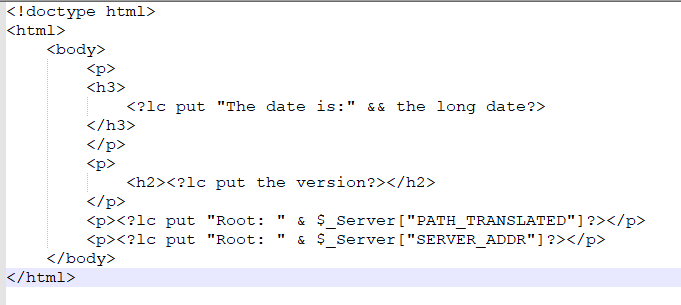
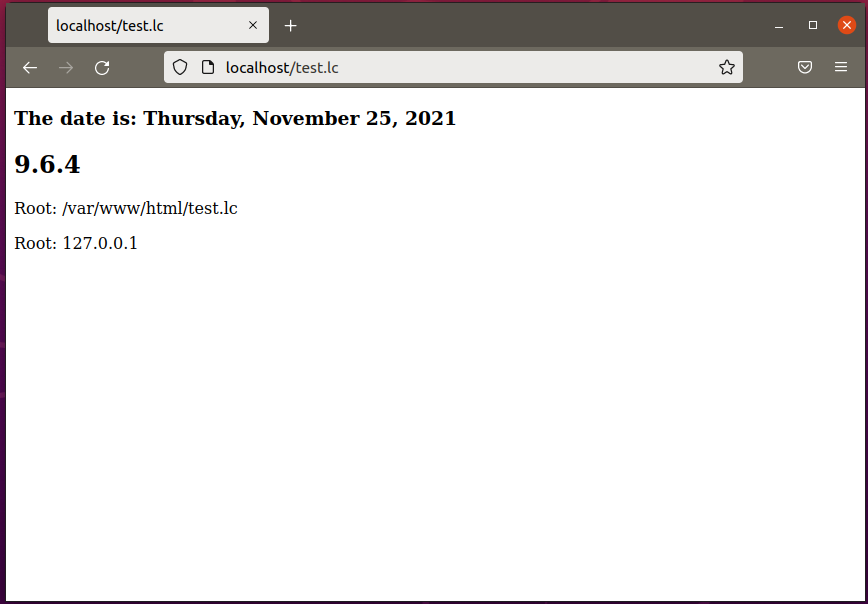
Go to localhost/test.lc and you should see: